

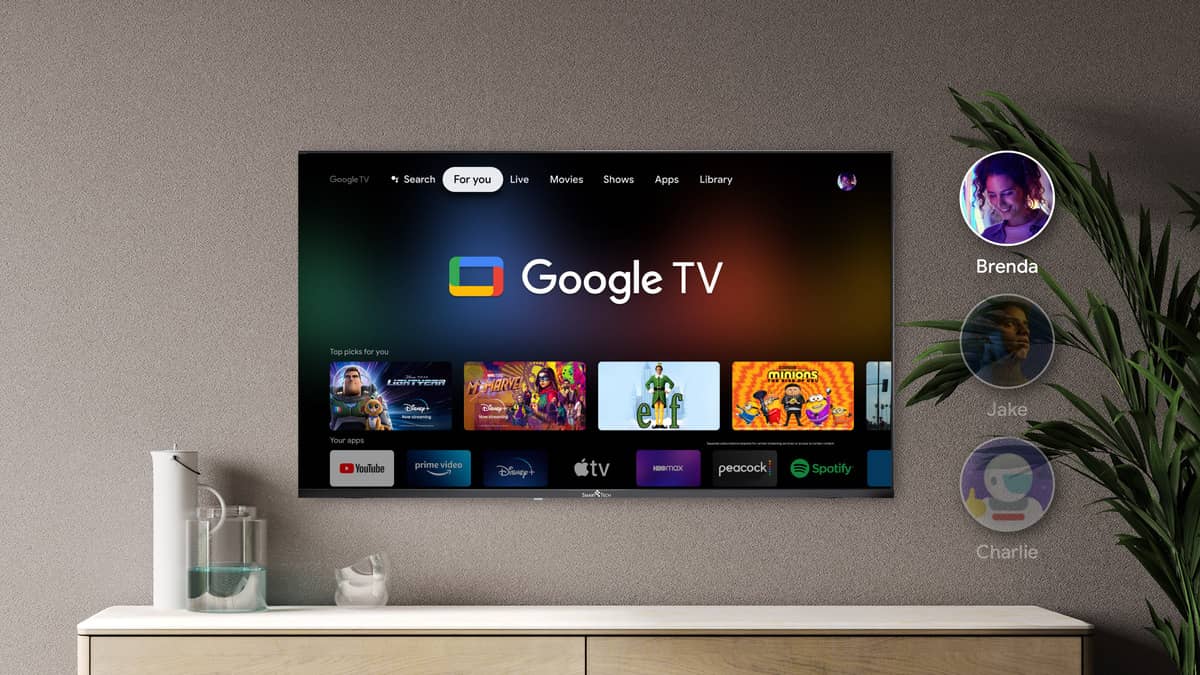
Google TV devices have become increasingly popular for streaming content, but like any technology, users may encounter issues from time to time.
Here are ten common problems faced by Google TV users and effective solutions to address them.
1. Wi-Fi Connectivity Issues
Problem: Google TV may struggle to connect to Wi-Fi or maintain a stable connection.Solution:
- Check your Wi-Fi settings by going to Settings > Network & Internet. Ensure Wi-Fi is turned on and connected to the correct network.
- Restart your router by unplugging it for about a minute and then plugging it back in.
- If possible, connect your device directly to the router using an Ethernet cable for a more stable connection.
2. Remote Control Not Working
Problem: The remote may become unresponsive or fail to control the device.Solution:
- Replace the batteries in the remote.
- Restart both the TV and the remote. You can do this by removing the batteries, waiting a moment, and then reinserting them after rebooting the TV.
- If issues persist, unpair and re-pair the remote through Settings > Remote & Accessories.
3. Audio Sync Issues
Problem: Audio may not sync properly with video playback.Solution:
- If using Bluetooth audio devices, try switching to wired speakers or a different audio source.
- Restart the device or perform a factory reset if necessary.
- Check for software updates under Settings > System > About > System update.
4. Screen Flickering
Problem: Users may experience screen flickering during playback.Solution:
- Check and replace HDMI cables if they are damaged or loose.
- Adjust display settings from Auto to your TV’s native resolution in Settings > Display & Sound.
5. Apps Not Loading or Crashing
Problem: Apps may fail to load or crash unexpectedly.Solution:
- Clear app data by navigating to Settings > Apps > See all apps, selecting the problematic app, and choosing Clear data.
- Ensure that all apps are updated through the Google Play Store.
6. Google Play Store “Download Pending” Error
Problem: Apps may get stuck on “download pending” when trying to install or update.Solution:
- Force stop the Google Play Store app via Settings > Apps > See all apps > Google Play Store > Force Stop.
- Clear cache and data for the Google Play Store as well.
- If issues persist, consider performing a factory reset of your device.
7. Device Freezing or Unresponsiveness
Problem: The device may freeze or become unresponsive during use.Solution:
- Restart your Google TV by unplugging it from power for about one minute before plugging it back in.
- If freezing continues, consider factory resetting your device as a last resort.
8. CEC (Consumer Electronics Control) Issues
Problem: Devices connected via HDMI may not turn on or off together as expected.Solution:
- Ensure that CEC is enabled on both your Google TV and connected devices (like soundbars or TVs).
- Restart all devices involved in HDMI CEC communication to re-establish connections.
9. No Picture or Distorted Image
Problem: Users may encounter a black screen or distorted images while using their Google TV.Solution:
- Check HDMI connections and try different HDMI ports on your TV.
- Adjust display settings to match your TV’s native resolution.
- Restart your device and check for updates that might resolve compatibility issues.
10. Voice Assistant Not Responding
Problem: The Google Assistant may fail to respond to voice commands.Solution:
- Ensure that voice recognition settings are enabled under Settings > Accounts & Sign In > Voice Match.
- Restart your device and check for updates that might fix any underlying issues with voice recognition functionality.
While Google TV devices offer a robust streaming experience, encountering problems is not uncommon. By following these troubleshooting steps, users can resolve many common issues quickly and efficiently, ensuring a smooth viewing experience.
If problems persist after trying these solutions, consider reaching out to customer support for further assistance.