



YouTube Music has rolled out a variety of exciting features designed to boost personalization, enhance music discovery, and foster community engagement.
Dive into these features with actionable tips and step-by-step guides to make the most out of your YouTube Music experience.
1. Discover New Music with the Samples Tab
The Samples tab offers a personalized feed of short video clips showcasing various artists, songs, and music videos.
How to Use:
- Open the YouTube Music app.
- Navigate to the Home tab.
- Scroll down to find the Samples section, featuring a feed of short clips.
- Swipe vertically to browse through different samples.
- Tap on a sample to listen to the full song or add it to your library.
Tip:
If you find a song you love, use the options to create a playlist or share it with friends.
2. Create Custom Radio Stations
You can now select up to 30 favorite artists to create a personalized radio station.
How to Use:
- Go to the Home tab and scroll to the “Your Library” section.
- Select “Artists” to view your favorites.
- Tap on the artist you want to include in your custom radio.
- Select the three-dot menu (⋮) next to the artist’s name.
- Choose “Start Radio”. You can add more artists by repeating the process.
Tip:
Experiment with different combinations of artists to discover new music that aligns with your taste.
3. Enhanced Desktop Usability
The web app has been updated for better navigation and usability, including the ability to download songs directly.
How to Use:
- Visit the YouTube Music website on your browser.
- Log in to your account.
- Browse your playlists or albums. You’ll notice a two-column layout for easier navigation.
- To download a song, hover over the track and click the download icon (if you have a premium subscription).
Tip:
Use keyboard shortcuts to navigate quickly. For example, use the spacebar to play/pause music.
4. Engage with the Community through Comments
You can now leave comments on tracks and podcast episodes, fostering community interaction.
How to Use:
- Select a song or podcast episode you want to comment on.
- Scroll down to the comments section below the video.
- Click on “Add a public comment” and type your thoughts.
- Hit “Post” to share your comment with the community.
Tip:
Engage with other users by responding to their comments to build connections and share music insights.
5. Real-Time Lyrics
Follow along with lyrics in real-time while listening to your favorite songs.
How to Use:
- Play a song from your library.
- Tap on the “Lyrics” button (usually located below the album art).
- Enjoy the lyrics as they sync with the music.
Tip:
Use this feature to learn the lyrics for sing-alongs or to better understand the song’s meaning.
6. AI-Generated Playlist Cover Art
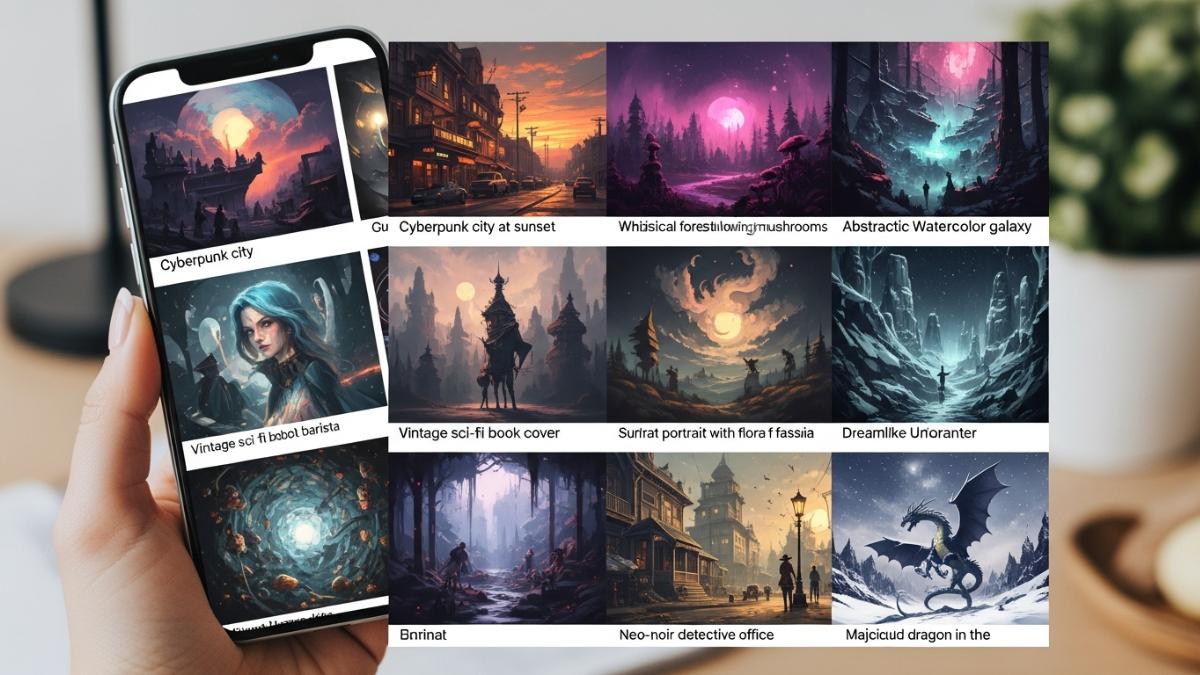
Users in the U.S. can create unique cover art for their playlists using generative AI.
How to Use:
- Go to your playlist in the YouTube Music app.
- Tap on the playlist cover art at the top.
- Select “Change Cover Art”.
- Enter a prompt describing the kind of art you want (e.g., “sunset over mountains”).
- Generate the artwork and select your favorite to set it as the cover.
Tip:
Be creative with your prompts to produce truly unique and personal artwork for your playlists.
7. Smart Downloads
YouTube Music now offers a Smart Downloads feature that automatically downloads songs based on your listening habits.
How to Use:
- Go to Settings in the YouTube Music app.
- Select “Downloads”.
- Enable “Smart Downloads”.
- Choose your preferred settings for how much storage to use.
Tip:
This feature is great for keeping your favorite tracks available offline without taking up too much space.
8. Collaborative Playlists
You can now create playlists that friends can contribute to, making music sharing more interactive.
How to Use:
- Create a new playlist or select an existing one.
- Tap on the three-dot menu (⋮) next to the playlist title.
- Select “Collaborate”.
- Share the playlist link with friends so they can add songs.
Tip:
Use this feature for parties or road trips to curate a group playlist.
9. Enhanced Search Filters
YouTube Music has improved its search functionality, allowing users to filter results by genre, mood, or activity.
How to Use:
- Tap on the search bar at the top of the app.
- Enter your search term (e.g., “chill music”).
- Use the filter options that appear to narrow down results by genre, mood, or activity.
Tip:
Explore different filters to find the perfect soundtrack for any occasion.
10. Song Radio Feature
This feature creates a radio station based on a specific song, allowing users to discover similar tracks.
How to Use:
- Find a song you enjoy in your library or search for it.
- Tap the three-dot menu (⋮) next to the song title.
- Select “Start Radio”.
- Enjoy a continuous stream of similar songs based on your selection.
Tip:
Use this feature when you want to explore new music without having to create a playlist.
With these ten new features, YouTube Music is transforming the way users discover, share, and enjoy music. By utilizing these actionable tips and tutorials, you can enhance your listening experience, connect with other music lovers, and explore new sounds tailored to your preferences. Dive in and enjoy your musical journey!