



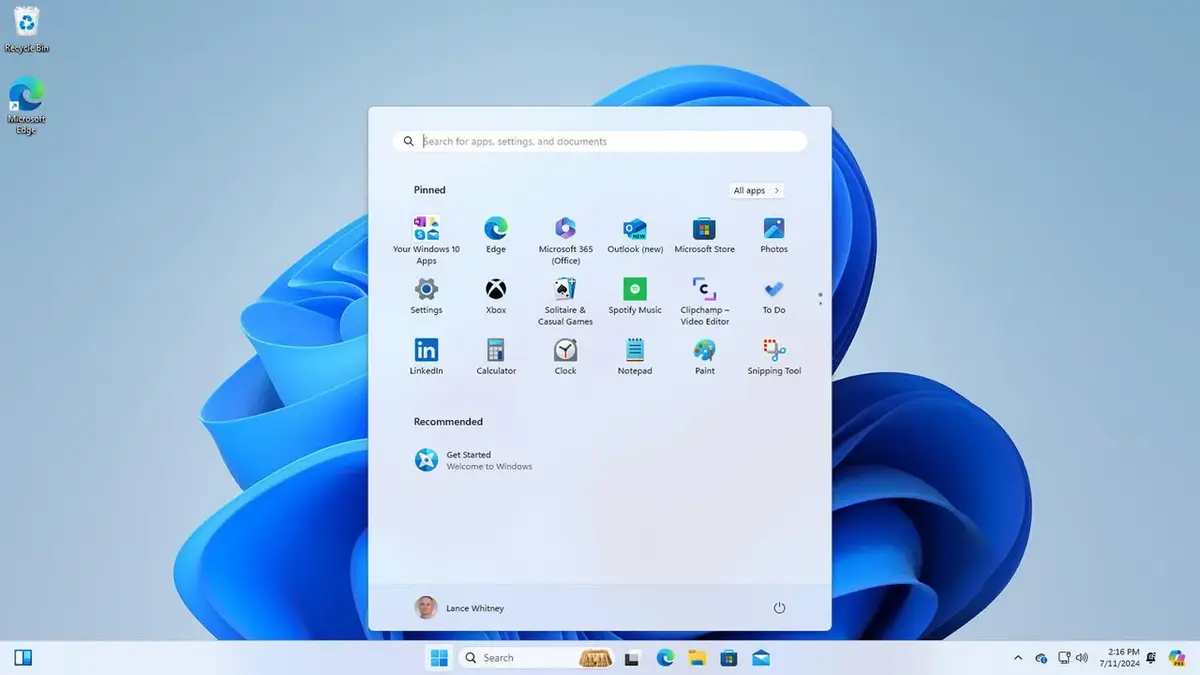
Windows 11 collects a mix of essential and optional data to improve performance and user experience.
However, if privacy is your priority, you can disable many of these tracking features.
Here’s how Windows 11 tracks your data and what you can do to limit it.
1. Browsing History (Microsoft Edge)
Windows 11 tracks your browsing activity and search terms if you use Microsoft Edge while signed into your Microsoft account.
How to Opt Out:
- Go to Settings > Privacy & security > Diagnostics & feedback.
- Toggle Send optional diagnostic data to Off.
2. Connected Devices
Windows collects data about devices connected to your PC, such as webcams, printers, and network adapters, including their drivers and states.
How to Opt Out:
- Navigate to Settings > Privacy & security > Diagnostics & feedback.
- Toggle Send optional diagnostic data to Off.
3. Location Tracking
Windows 11 uses your location for apps and services. While this can be helpful, it may raise privacy concerns.
How to Opt Out:
- Go to Settings > Privacy & security > Location.
- Disable location tracking for specific apps or turn it off entirely.
4. Product and Service Usage
Microsoft tracks how you interact with apps and features to optimize services and provide recommendations.
How to Opt Out:
- Head to Settings > Privacy & security > Diagnostics & feedback.
- Toggle Send optional diagnostic data to Off.
5. Software and Inventory Data
Windows tracks software versions, updates, and settings to improve diagnostics and security.
How to Opt Out:
- Disable optional diagnostic data sharing under Settings > Privacy & security > Diagnostics & feedback.
6. Voice Data
If you use voice features like dictation, Windows 11 may send your voice data to Microsoft’s servers for speech recognition.
How to Opt Out:
- Go to Settings > Privacy & security > Speech.
- Turn off Online speech recognition.
Additional Tips to Protect Your Privacy
- Turn off personalized ads by navigating to Settings > Privacy & security > General and disabling ad tracking.
- Review and adjust app permissions under Privacy & security > App permissions.
While you can’t completely stop Windows 11 from collecting data, these steps will help you take control and minimize unnecessary tracking.