


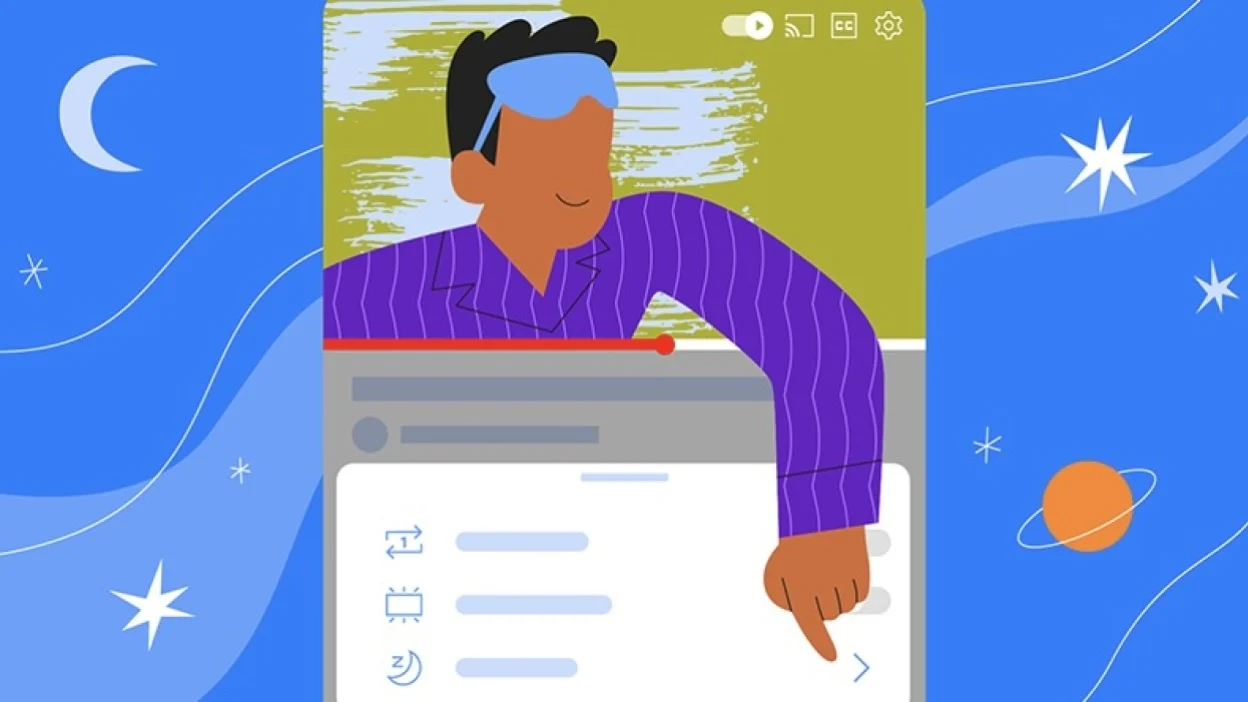
YouTube’s sleep timer is finally available to everyone! Once a perk for Premium users only, this handy feature now helps anyone enjoy videos without worrying about them playing all night.
Here’s how you can use YouTube’s sleep timer feature to improve your bedtime routine.
What Is YouTube’s Sleep Timer?
For those who fall asleep to the sound of videos or music, a sleep timer is a game-changer. Instead of waking up with a video still running—or worse, getting jolted by an ad—you can set YouTube to stop playback automatically. Whether you need 20 minutes or an hour to drift off, the timer lets you control exactly when playback ends, saving energy and ensuring peaceful rest.
How to Use YouTube’s Built-In Sleep Timer
YouTube’s sleep timer is now available in the app for all users. Here’s how to use it:
- Play a Video: Start any video you want to watch or listen to.
- Access Settings: Tap the settings gear icon on the video.
- Set Your Timer: Choose a timer duration—10, 15, 20, 30, 45, 60 minutes, or the length of the video.
- Relax: Once the timer ends, playback will stop automatically.
This feature works for everyone, so you don’t need a Premium account anymore!
Alternative Sleep Timer Options
If the YouTube timer hasn’t rolled out to you yet or you want more control, here are other options:
On iPhone
- Open the Clock app and go to the Timers tab.
- Set the desired timer length.
- Tap When Timer Ends, scroll down, and choose Stop Playing.
- Start your timer, then play your video on YouTube.
When the timer ends, your iPhone will stop playback and lock itself, conserving battery life.
On Android
Android users can download third-party apps like Sleep Timer by Kuczera to achieve the same effect. If you have a Samsung device, you can automate this process:
- Open Modes and Routines and select Routines.
- Tap the + icon to create a new routine.
- In the “If” section, choose Start manually.
- In the “Then” section, add Wait before next action and set the timer duration.
- Add the Close an app action and select YouTube.
- Save the routine and hit Play whenever you want to use it.
Why Use a Sleep Timer?
Whether you’re listening to calming videos or background noise to sleep, a timer helps you control your experience. You’ll save energy, protect your device, and wake up without interruptions. With YouTube now making this feature more accessible, it’s the perfect time to try it out!
