
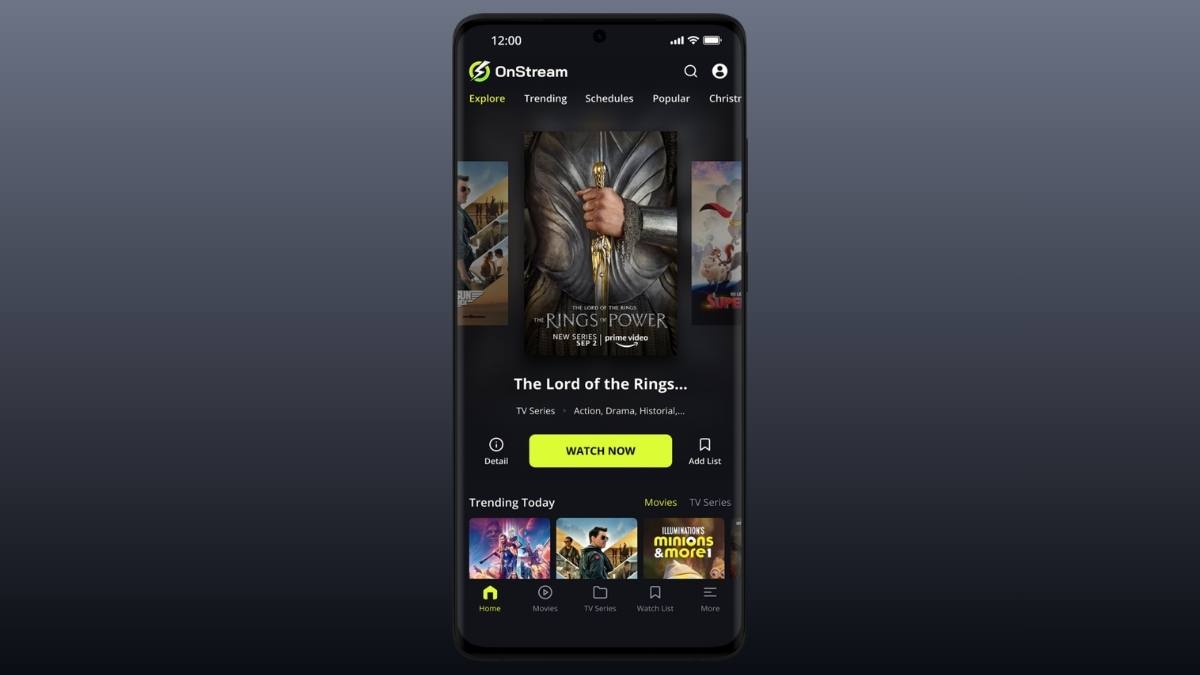
OnStream is a third-party streaming app that is not available on official app stores like Google Play, Amazon Appstore, or Apple App Store. Because of this, it can only be installed using a method called sideloading, which means manually installing an APK file.
This guide explains how to install OnStream on different devices step by step, including Fire Stick, Android, and PC. It also includes important safety warnings so you understand the risks before proceeding.
⚠️ Important Before You Start
OnStream is not officially licensed and is not available on trusted app stores. Installing it requires enabling unknown sources, which can expose your device to risks such as:
- malware or spyware
- data privacy issues
- unstable or broken app versions
- legal risks depending on your country
If you want a safer option, legal apps like Tubi, Pluto TV, or Amazon Freevee are recommended.
How to Install OnStream on Android Phones & Tablets
This is the simplest method since Android allows APK installation.
Steps:
- Go to Settings on your phone
- Open Privacy / Security settings
- Enable “Install unknown apps” for your browser (Chrome, Firefox, etc.)
- Download the OnStream APK file using your browser
- Open the downloaded file from your Downloads folder
- Tap Install and wait for it to finish
Once installed, the app will appear on your home screen.
How to Install OnStream on Fire TV / Fire Stick
Fire Stick is one of the most popular devices for sideloading apps.
Steps:
- Go to Settings > My Fire TV
- Open Developer Options
- Turn ON:
- ADB Debugging
- Install Unknown Apps
- Go to the Amazon Appstore and install “Downloader”
- Open Downloader and enter the APK download link (you must find a trusted source yourself)
- Download the file and click Install
- Launch the app from your apps list
How to Install OnStream on Android TV / Google TV
Works on devices like Chromecast, NVIDIA Shield, Sony TV, etc.
Steps:
- Go to Settings > Device Preferences
- Enable Developer Mode (tap Build 7 times if needed)
- Allow Unknown Sources for the downloader app
- Install the Downloader app from Google Play Store
- Open it and enter the APK link
- Download and install the app
How to Install OnStream on PC / Mac (BlueStacks Method)
You can run Android apps on a computer using an emulator like BlueStacks.
Steps:
- Download and install BlueStacks from its official website
- Open BlueStacks and go to Settings > Security
- Enable Install from Unknown Sources
- Download the OnStream APK on your computer
- Drag and drop the APK into BlueStacks
- The app will install automatically
- Open it from the BlueStacks home screen
How to Install OnStream on iPhone / iPad (Important Limitation)
On iOS devices, APK files cannot be installed at all.
What this means:
- OnStream does NOT support iPhone or iPad installation
- Any website claiming “OnStream for iOS” is likely a scam
- Apple does not allow sideloading APK-style apps
Warning:
Avoid sites asking you to install profiles or enter Apple ID details. These are commonly used for phishing and account theft.
Common Risks of Installing OnStream
Before using sideloaded apps, understand the risks:
- Security threats: Some APK files may contain malware
- No official updates: You must manually update the app
- Privacy concerns: Some apps request unnecessary permissions
- Legal issues: Streaming copyrighted content may not be legal in your region
Safer Legal Alternatives
If your goal is just free movies, these official apps are safer and more stable:
- Tubi – huge movie library, no sign-up required
- Pluto TV – live TV + movies
- Amazon Freevee – high-quality licensed films
- The Roku Channel – works on any browser
- Crackle – classic free streaming platform
These apps are available on official stores and do not require sideloading.
Final Thoughts
Installing OnStream is possible on Android-based devices and PCs using emulators, but it requires sideloading and comes with risks. While the process is straightforward, it removes important security protections.
For most users, legal free streaming apps offer a safer and more reliable experience without installation complications or security concerns.