



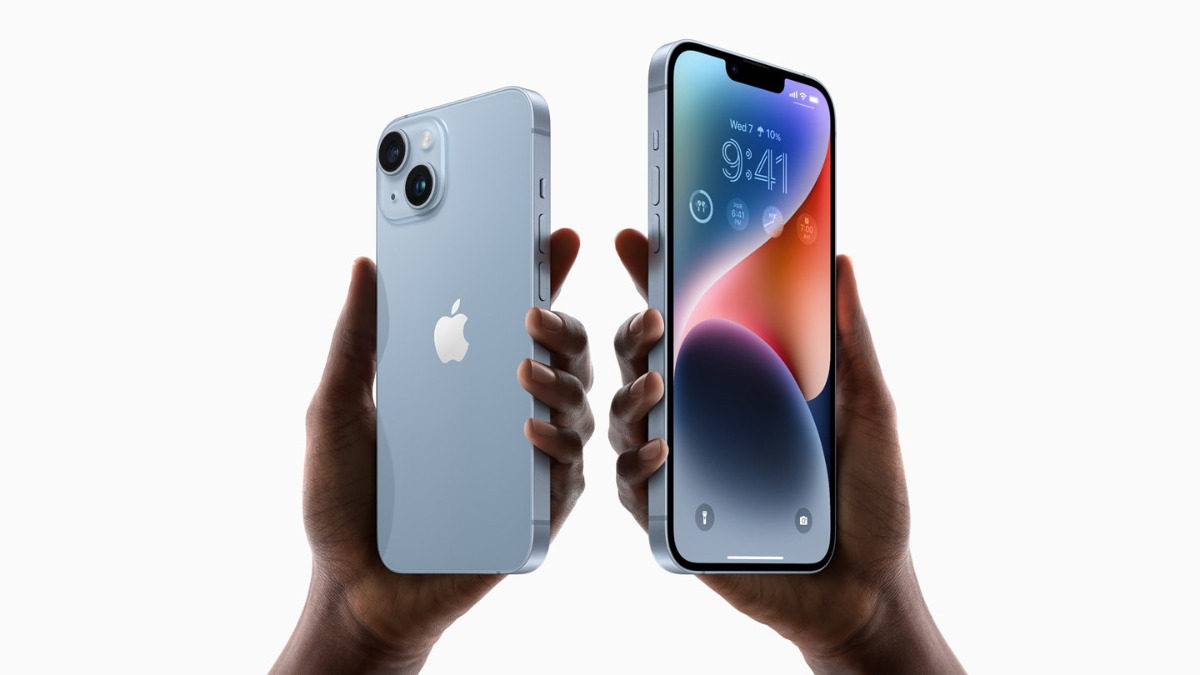
Apple’s iPhone has many hidden features that can improve your phone’s performance and make daily tasks easier.
Many users don’t know about these settings, which can help save battery, organize your apps, and even customize your experience.
Here are 23 iPhone settings you should check out:
Stop Apps from Tracking Your Exact Location: Some apps track your exact location. You can turn off this feature for apps that don’t need it. Go to Settings > Location > [App] and turn off Precise Location.
Turn the Back of Your iPhone Into a Button: On older iPhones, you can set up double or triple taps on the back to trigger actions like taking a screenshot or opening the camera. Find it in Settings > Accessibility > Touch > Back Tap.
Enable Live Voicemail Transcriptions: With iOS 17, you can read voicemails as they are being left. Turn this on in Settings > Phone > Live Voicemail.
Full-Screen Incoming Calls: If you prefer full-screen incoming call alerts, go to Settings > Phone > Incoming Calls and choose Full Screen.
Turn Off Unwanted 5G Coverage: Save battery by turning off 5G if it’s not available in your area. Go to Settings > Cellular > Voice & Data and select LTE.
Manage 5G Data Usage: Choose how much data 5G uses by going to Settings > Cellular > Data Mode.
Stop Apps from Cluttering Your Home Screen: You can prevent new apps from showing up on your home screen. Go to Settings > Home Screen & App Library and choose App Library Only.
Unlock Your iPhone with a Face Mask: If you wear a mask, you can unlock your iPhone using Face ID. Turn on Face ID with a Mask in Settings > Face ID & Passcode.
Put Safari’s Address Bar Back on Top: If you miss the address bar at the top of Safari, go to Settings > Safari and choose Single Tab.
Customize Lock Screen Access: Control which features are available when your iPhone is locked by going to Settings > Face ID & Passcode > Allow Access When Locked.
Set a Default Email or Browser App: You can choose which email or web browser app opens by default. Go to Settings and select the app you want as default.
Show Full Notifications on Lock Screen: If you want to see the content of notifications, go to Settings > Notifications > Show Previews and choose Always.
Turn Off HDR Video: If you don’t want HDR video, go to Settings > Camera > Record Video and turn off HDR Video.
Customize Wallpaper: Set a wallpaper that automatically switches between light and dark modes. Go to Settings > Wallpaper and choose your image.
Turn On Dark Mode: Dark mode can help save battery. Turn it on by going to Settings > Display & Brightness.
Manage Notifications with Focus Mode: Use Focus Mode to block distractions and only allow important notifications. Set it up in Settings > Focus.
Make Text Larger or Bolder: Adjust text size and make it bold by going to Settings > Display & Brightness > Text Size.
Set Up Alternate Face ID: If Face ID isn’t recognizing you, add an alternate appearance in Settings > Face ID & Passcode.
Disable Auto-Brightness: Turn off auto-brightness to save battery by going to Settings > Accessibility > Display & Text Size.
Review Privacy Settings: Take control of your privacy by checking which apps have access to your personal data in Settings > Privacy.
Customize Control Center: Add or remove shortcuts in Control Center by going to Settings > Control Center.
Schedule Notification Summary: Instead of getting all notifications immediately, schedule a summary of less urgent ones. Set this in Settings > Notifications > Scheduled Summary.
Change Siri’s Voice: Change Siri’s voice and gender by going to Settings > Siri & Search > Siri Voice.
With these settings, you can make your iPhone work better for you, from saving battery to organizing your apps and notifications. Try them out and see how they improve your experience.